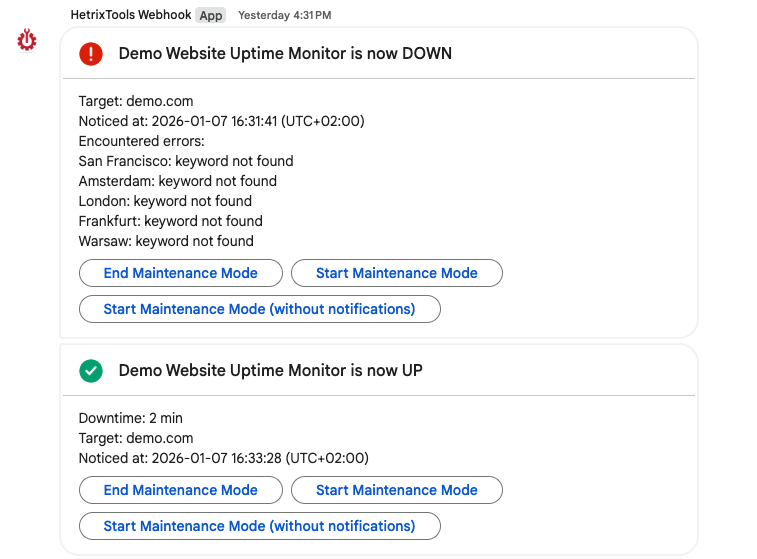
In this guide, we’ll show you how easy it is to set up this integration so you can start receiving our notifications in your Google Chat workspace.
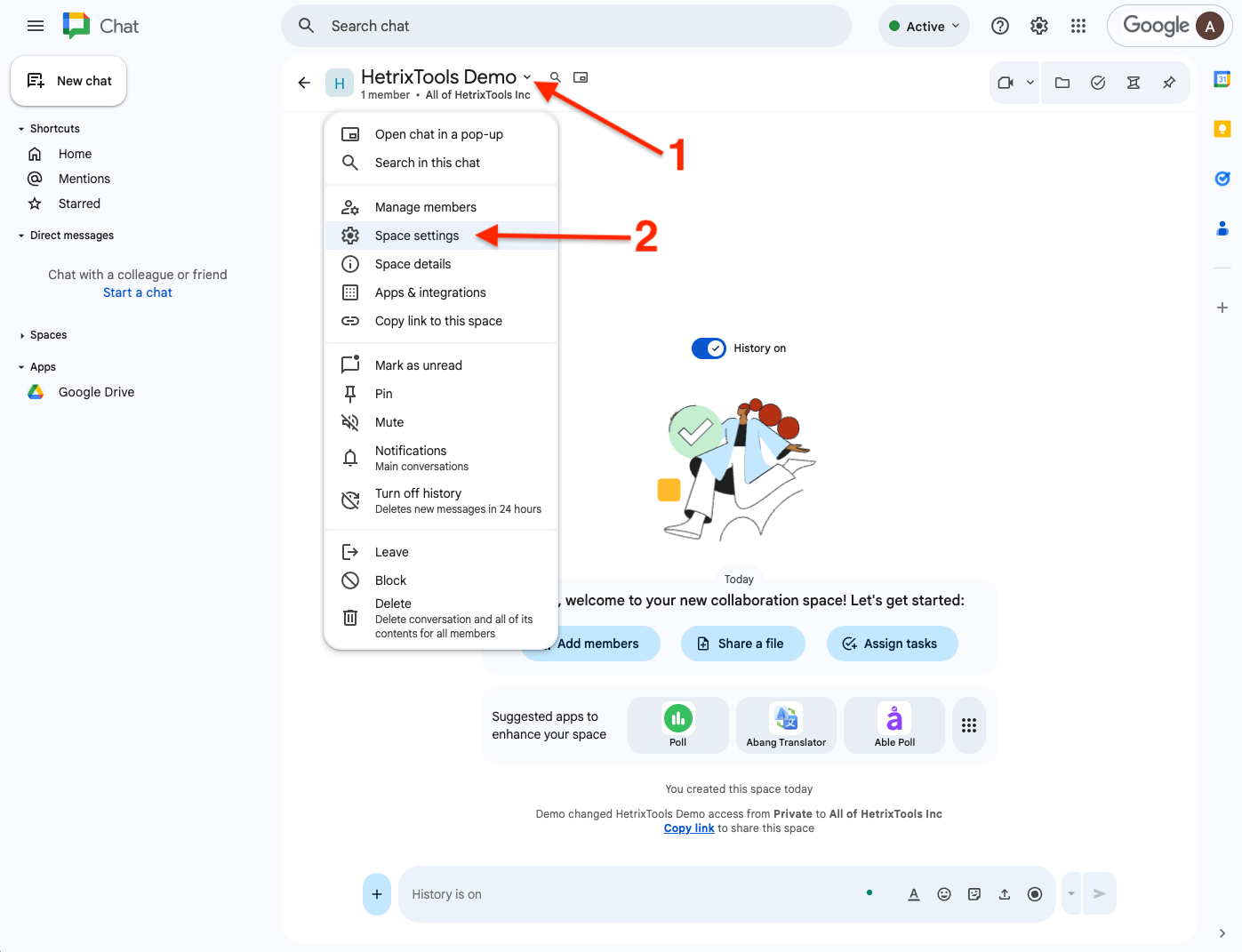
Start by going to the Google Chat channel where you’d like to receive our notifications. Click on the channel’s name to open its drop-down menu, and then click on “Space settings”.
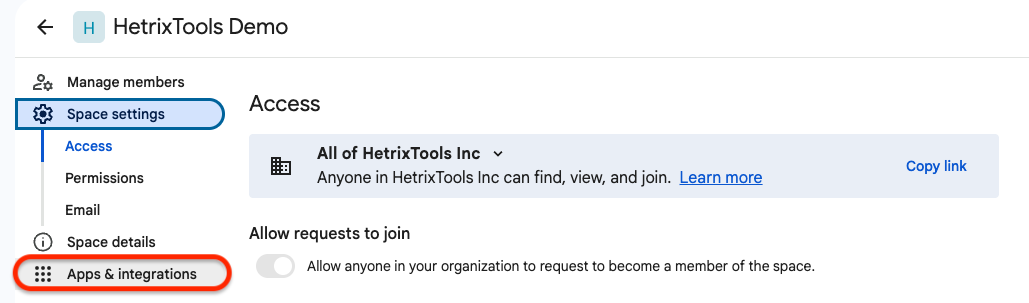
Now, on the settings page, go to “Apps & integrations” from the side menu.
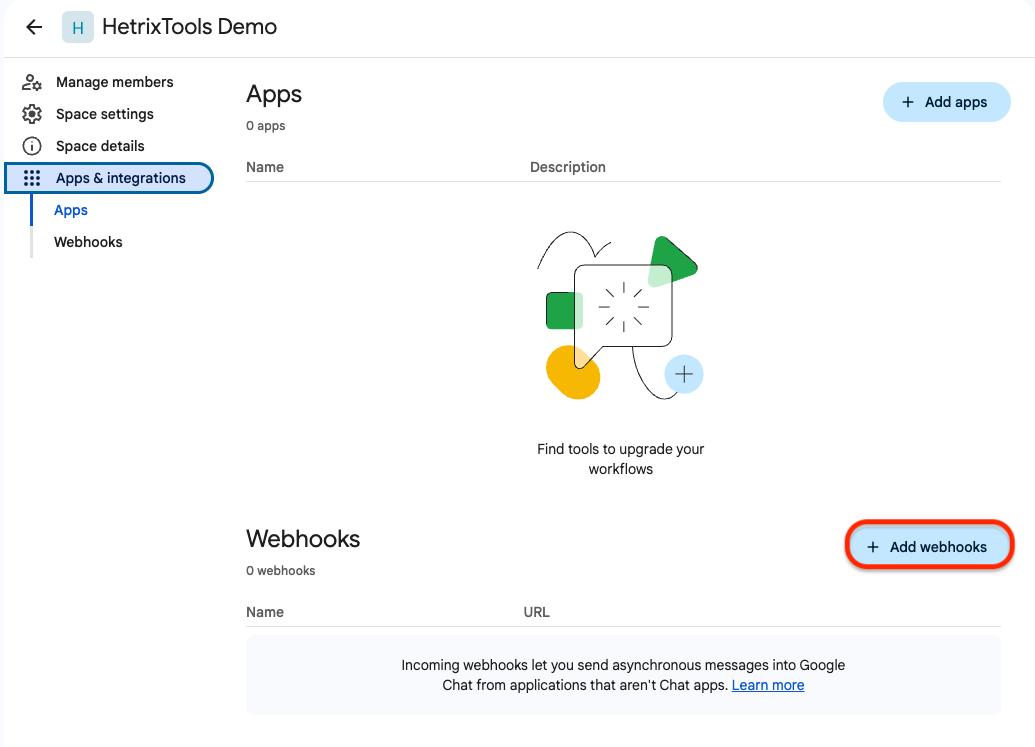
Here, click on the “Add webhooks” button towards the bottom of the page.
Then, configure the name and optionally the icon image for this new webhook, and click on the “Save” button.

The new webhook has now been created and will be available in the “Webhooks” section on the same page you’re already on. Locate it, click on the three vertical dots next to it, and then click on “Copy link” to copy its link to your clipboard; you will need it in the next steps on the HetrixTools platform.

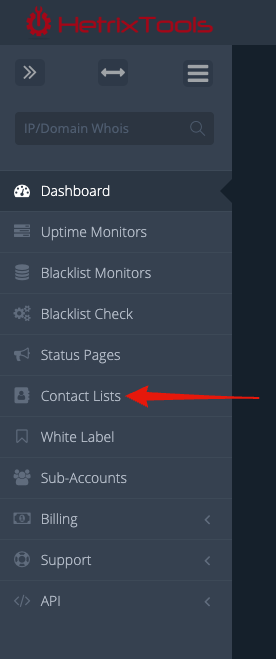
Now that you have your webhook URL, head on to the HetrixTools platform and log in to your customer account. Then, go to “Contact Lists” from the client area side menu.
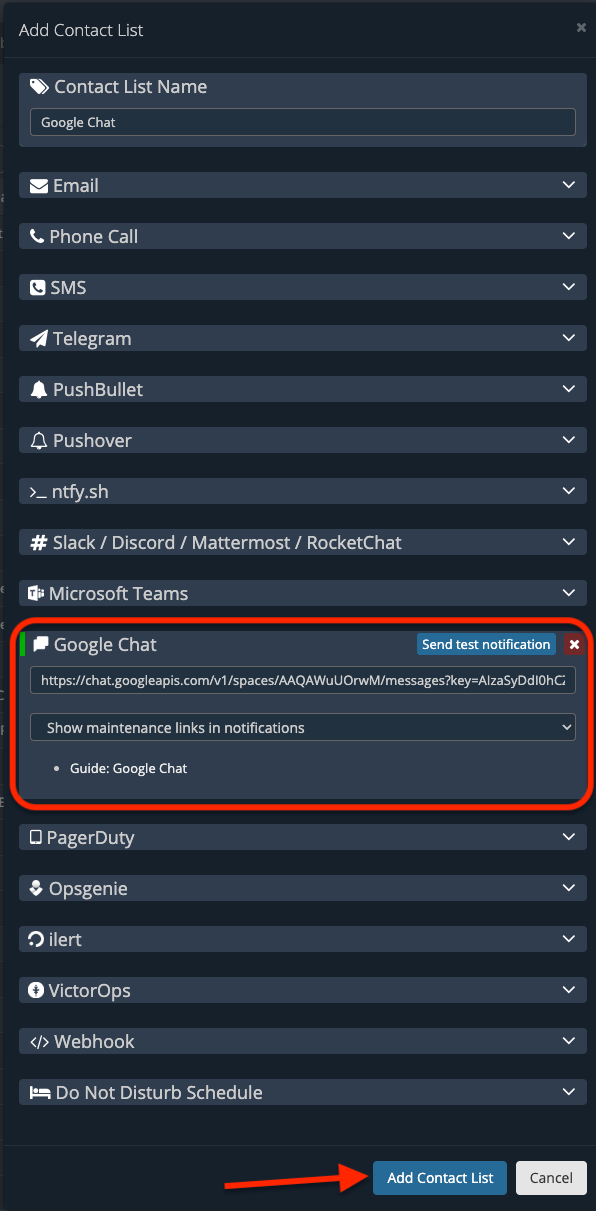
From here, add a new Contact List or edit an existing one. Locate the “Google Chat” section within the Contact List pop-up modal and paste in the webhook URL obtained on the Google Chat platform. Then, just save your Contact List from the button at the bottom of the modal.
And that’s all. You are now set to receive our notifications in your Google Chat channel.