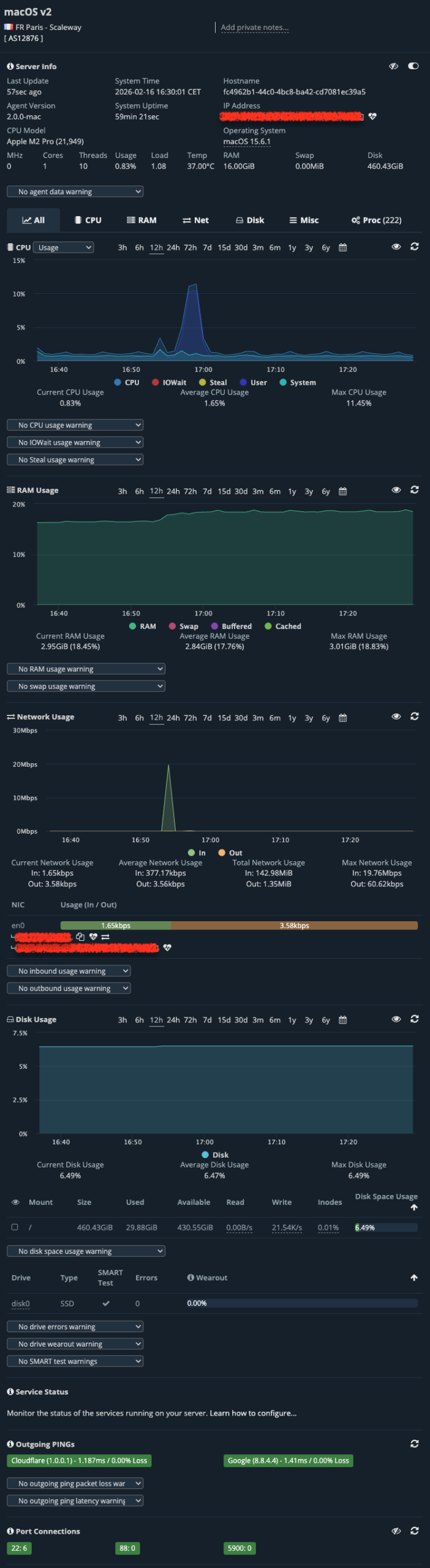
This guide will show you how to install the HetrixTools Server Monitoring agent on your macOS server or PC.
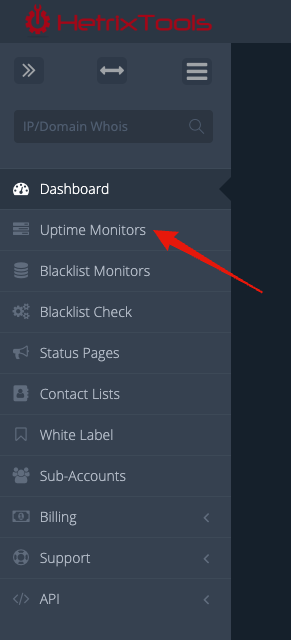
Start by going to your Uptime Monitors dashboard from your client area menu.
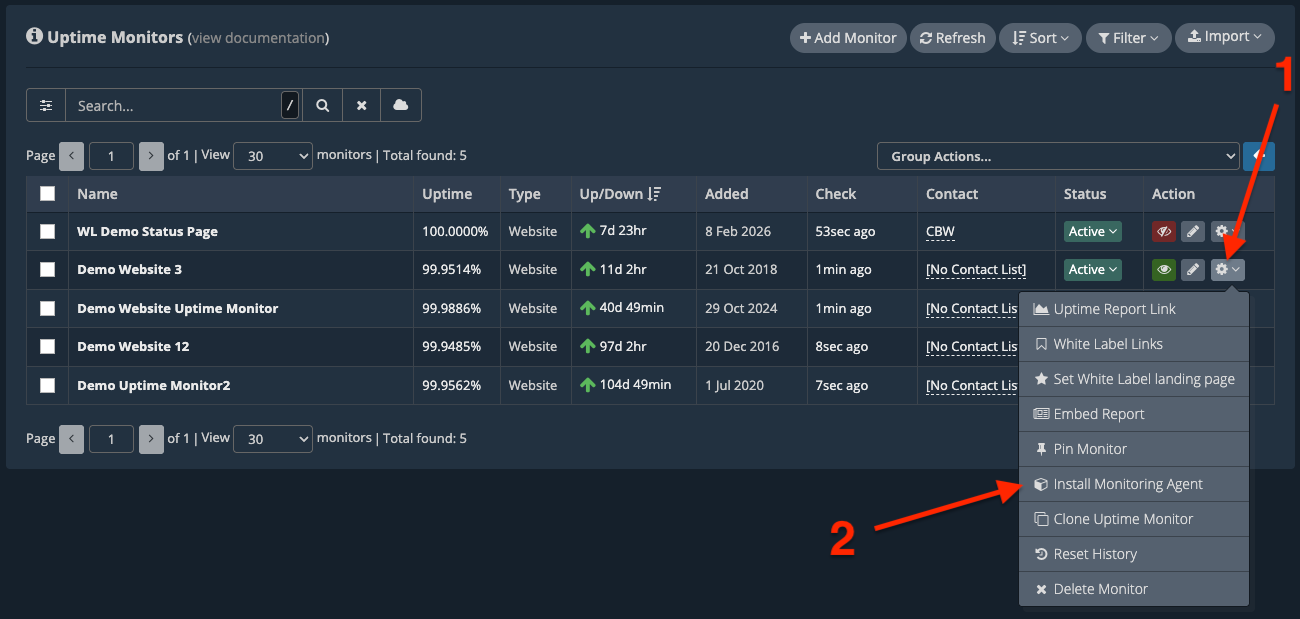
Now, locate the Uptime Monitor you wish to attach this Server Monitor to and go to its “Action” column, click on the cogwheel drop-down actions button, and select “Install Monitoring Agent”.
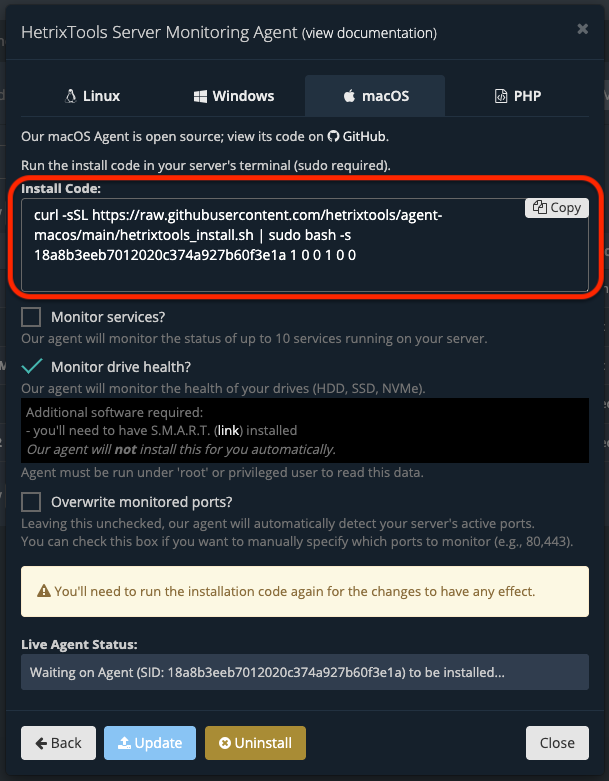
A pop-up modal will appear containing the installation instructions. The default view is for our Linux Monitoring Agent. You’ll have to locate the “macOS” tab and click on it.
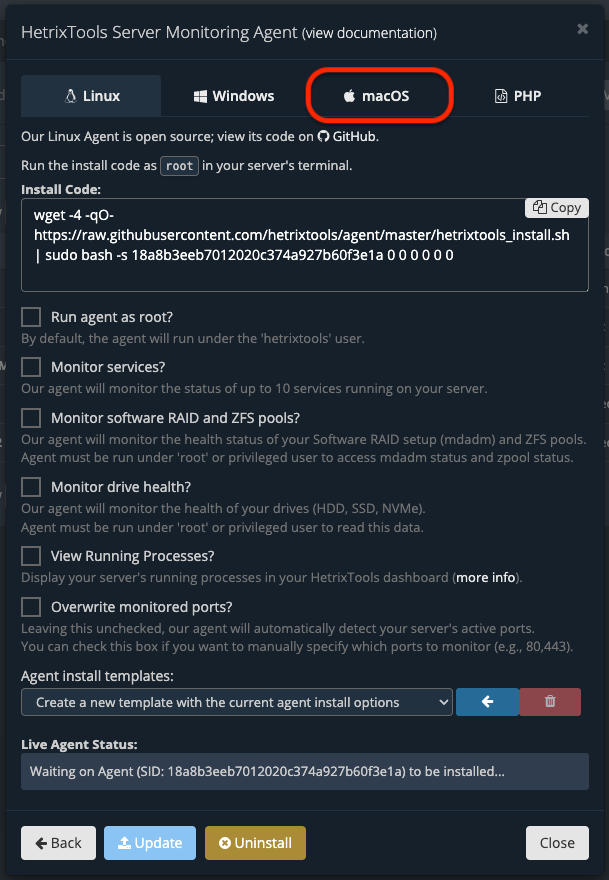
On the “macOS” tab, you’ll have the macOS installation code and configurable options. Make sure to select all configurable options before copying and pasting the installation code into your macOS terminal, as the installation code will change based on your selections.
Then, just copy/paste the installation code into your macOS command terminal.
Allow 1-2 minutes for the metrics data to come in, and you’re all done. You can now view your macOS metrics in our dashboard.