
Private Notes give you a simple way to organize your uptime monitors around the work you need to do. Add a distinctive keyword to a monitor’s notes, then use that keyword to find the same group in your HetrixTools dashboard, through the API, or with an AI assistant connected to our MCP server.
In this guide, we will use patchpending to keep track of monitors whose associated systems still need patching. We will add the tag, find the pending items, narrow the list, and remove the tag as each item is completed. The screenshots use a demo account; choose the monitors and tags that fit your own environment.
A tag here is simply text you choose to put in Private Notes. You do not need to create a separate tag first. Adding or removing this text does not patch a server, change its monitoring status, or start or end maintenance mode.
Choose a consistent set of tags
Use short, distinctive words that are easy to type. Lowercase letters and numbers work well across the dashboard, API, and MCP. Put each tag on its own line so that you can remove one without changing the rest of the note.
patchpending
europe
teamplatform| Example tag | What you use it for |
|---|---|
| patchpending | A temporary worklist of systems that still need patching. |
| europe | A location grouping that can remain after the work is finished. |
| teamplatform | An ownership grouping for your platform team. |
| waveoct2026 | An optional identifier for one particular maintenance campaign. |
These are examples, not built-in tags. You can keep ordinary explanatory notes alongside them. Avoid using a broad word such as pending when you need to distinguish several kinds of work, and avoid a completion label such as notpatchpending: it still contains the search text patchpending.
Private notes are not displayed on public reports. Authorized account users and integrations with private-notes access can read them, so use them for operational context rather than passwords or API keys.
Add tags to one monitor
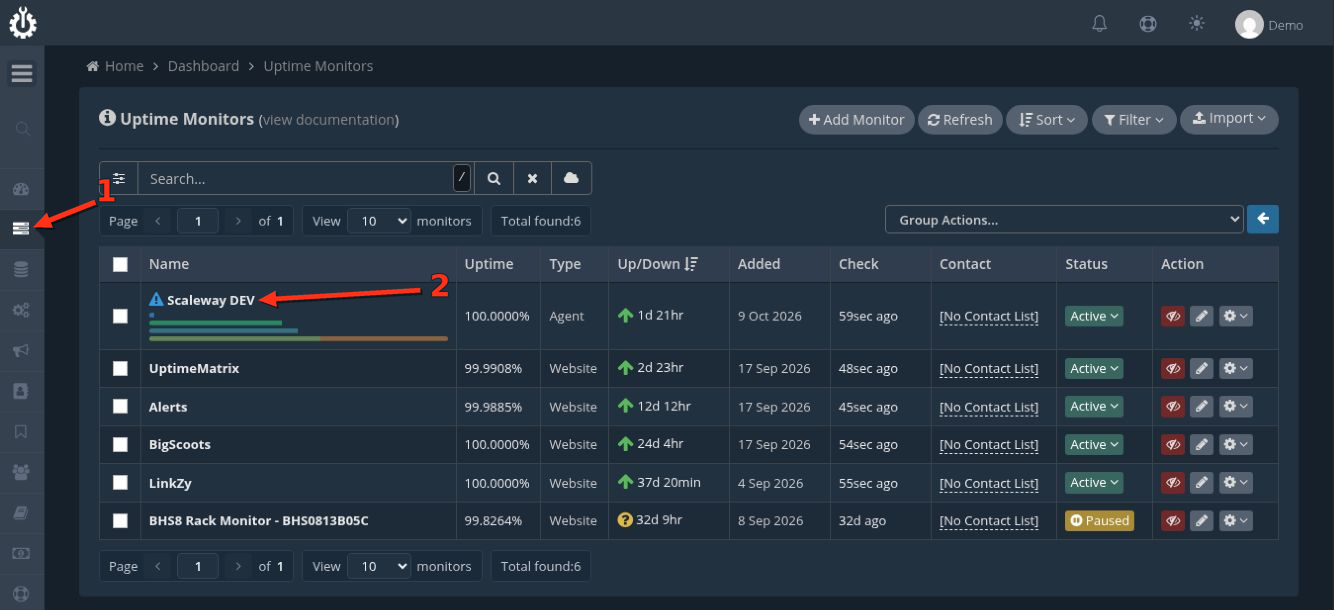
Start by opening Uptime Monitors from your client area side menu. Click the name of the monitor you want to tag. In the screenshot below, arrow 1 points to the Uptime Monitors menu icon and arrow 2 points to the monitor name.
In the monitor information window, locate Add private notes… near the top right and click it. If the monitor already has notes, click the existing note text instead.

Enter your tags in the note field, keeping any existing text that you still need. In this example, we add patchpending, europe, and teamplatform on separate lines. Click Save.

The saved text appears in the same place. You can click it again whenever you need to edit the tags or add more context.

Add the same tag to multiple monitors
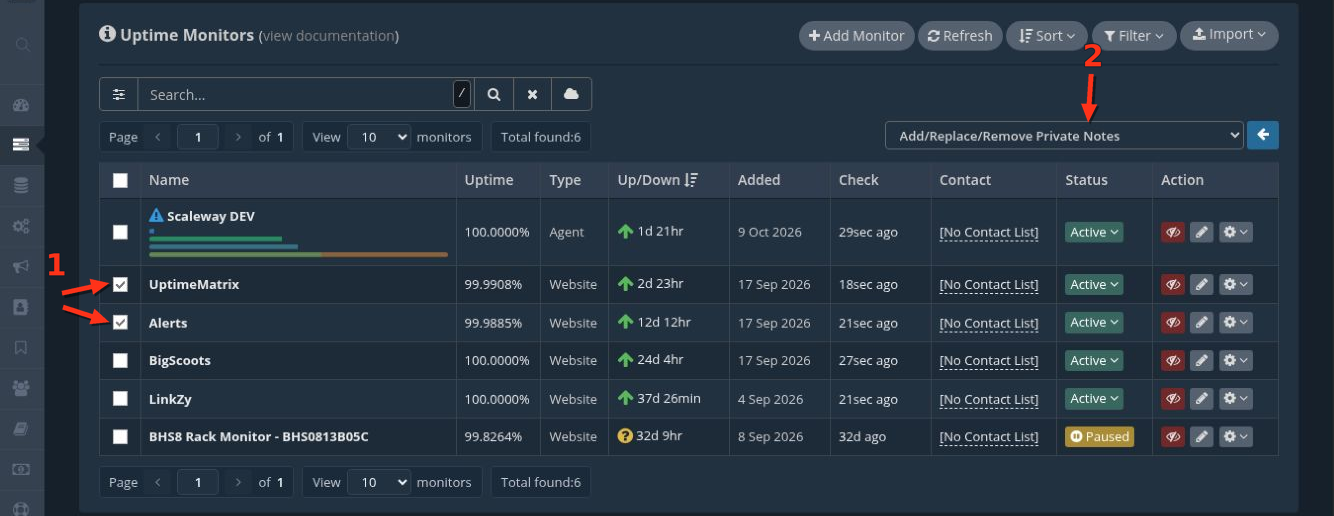
If several monitors belong to the same worklist, you can add the tag to them in bulk. Return to your Uptime Monitors list and select the checkboxes next to the intended monitors. In the Group Actions menu, choose Add/Replace/Remove Private Notes.
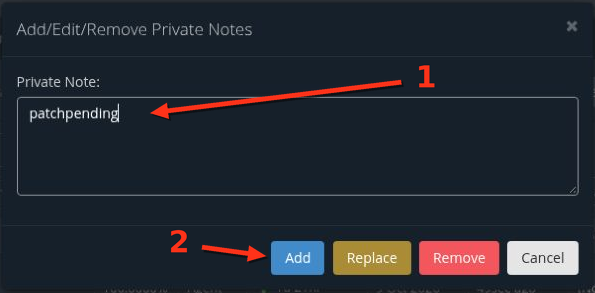
In the dialog, type patchpending and click Add. This adds the text to the selected monitors while retaining their existing notes. In our example, we add the tag to UptimeMatrix and Alerts.
| Action | Effect on each selected monitor |
|---|---|
| Add | Adds the supplied text to the existing private notes. |
| Replace | Replaces the entire private note with the supplied text. |
| Remove | Clears the entire private note. It does not remove just one matching tag. |
Before applying a group action, check which monitors are selected. If your list spans multiple pages, account for those pages instead of assuming every search result has been selected. Use Add for this tagging workflow; Replace and Remove are for changes to the whole note.
Find your tagged monitors in the dashboard
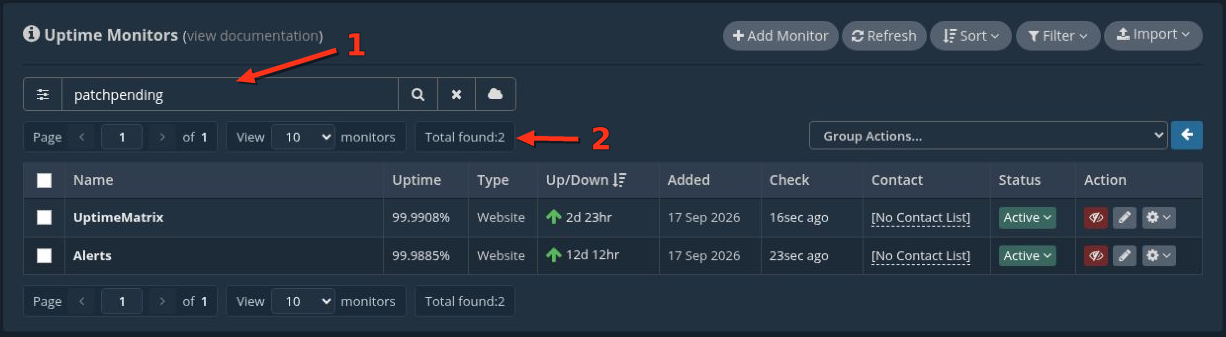
Type patchpending into the search field above your Uptime Monitors list and press Enter, or click the magnifying-glass button. Use the default Include search mode. The search includes private-note text, so the monitor names themselves do not need to contain the tag.
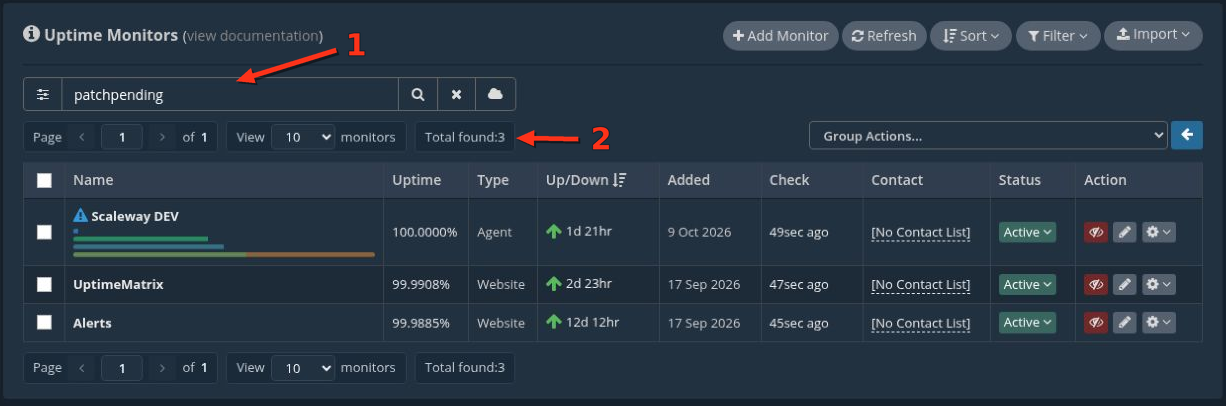
Our demo now has three matching monitors: Scaleway DEV, UptimeMatrix, and Alerts. Total found tells you how many matches are in the filtered list; use the pagination controls when the result spans several pages.
Combine tags to narrow the list
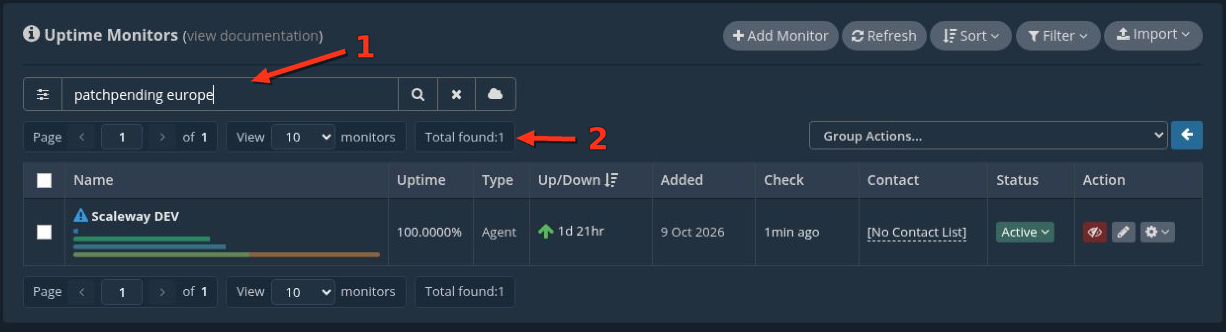
You can make the search more specific by entering more than one term. Search for patchpending europe to find the matching items in that location. In this example, only Scaleway DEV has both terms in its notes.
The dashboard also searches other monitor fields, including names, targets, and categories. A distinctive tag makes unintended matches less likely. The API and MCP examples below use a dedicated private-notes filter when you want to search only the notes.
For an inverse view in the dashboard, use !patchpending to find monitors that do not contain that keyword. This dashboard exclusion syntax is not supported by the API’s private_notes_search parameter; via the API, you can code your own exclusion logic.
Remove the tag as work is completed
After you have completed and checked the work for a particular system, open that monitor’s information window and click its note text. Delete only the patchpending line, keep the other notes and tags, and click Save. Do not use the trash icon or the bulk Remove action when you want to retain the rest of the note.

Run the patchpending search again. Scaleway DEV no longer appears; the other two monitors remain in the worklist. A note change can take a short time to appear in search results, so refresh the search if the list has not caught up yet.
Avoid leaving the same tag elsewhere in the note, such as in a sentence saying “patchpending completed.” A text search will still find it there. If you need a completion marker, use a separate term such as patchcomplete.
Use tags through the API
The v3 API can find monitors by their private notes, read the full note, append text, and replace or clear a note. The examples below use Bash and curl. The optional line-removal example also uses jq. Use an API key that has access to the intended monitors and operations.
Check the API key permissions
Get a key from your API Keys page and configure its scope. Searching private notes requires both GET Uptime Monitors and GET Private Notes access. Grant the corresponding POST or PUT Private Notes permission only if the integration needs to edit the notes.
| What you want to do | Required API operations |
|---|---|
| Find monitors using note text | GET Uptime Monitors and GET Private Notes |
| Read the complete private note | GET Private Notes |
| Append a tag | POST Private Notes |
| Replace a note after removing one tag | GET Private Notes to read it, then PUT Private Notes to save it |
| Clear all private notes on one monitor | DELETE Private Notes, or PUT Private Notes with an empty string |
Prepare these shell variables. The prompt keeps the key out of the command you type; enter your own key when prompted.
read -r -s -p 'HetrixTools API key: ' HETRIX_API_KEY
printf '\n'
HETRIX_API_BASE='https://api.hetrixtools.com/v3'
To inspect what the key is allowed to do, request its scope:
curl --fail-with-body --silent --show-error \
  -H "Authorization: Bearer $HETRIX_API_KEY" \
  "$HETRIX_API_BASE/account/api/scope"
The scope response reports the key’s operation permissions and any asset restrictions. A search only covers monitors that the key is allowed to access.
Search for the tag
curl --fail-with-body --silent --show-error --get \
  -H "Authorization: Bearer $HETRIX_API_KEY" \
  --data-urlencode 'private_notes_search=patchpending' \
  --data 'per_page=100' \
  --data 'page=1' \
  "$HETRIX_API_BASE/uptime-monitors"
The response contains the matching monitors, their IDs and statuses, and pagination metadata. Check meta.total_filtered for the number of matching monitors and follow meta.pagination.next until it is null. Keep the same filters on every page. The list response does not include the private-note text itself.
To search for both tags, change the filter to private_notes_search=patchpending europe. With curl, --data-urlencode encodes the space for you. You can also combine it with a status filter:
curl --fail-with-body --silent --show-error --get \
  -H "Authorization: Bearer $HETRIX_API_KEY" \
  --data-urlencode 'private_notes_search=patchpending europe' \
  --data 'uptime_status=down' \
  --data 'per_page=100' \
  --data 'page=1' \
  "$HETRIX_API_BASE/uptime-monitors"
This second request asks for monitors whose notes match both terms and whose current uptime status is down. It can correctly return no matches even when the tag search without the status filter returns monitors.
Search rules: Matching is case-insensitive. Every space-separated term must occur somewhere in the notes as a substring, in any order. The trimmed query must be 1–64 ASCII bytes, using letters, numbers, spaces, dots, dashes, or colons, and must contain at least one letter or number. Characters such as #, _, and ! are not accepted in this API filter. To list monitors without a note filter, omit the parameter rather than sending an empty value.
Read the note before editing it
Set HETRIX_MONITOR_ID to the ID returned for the monitor you intend to edit. Use the monitor ID, not the Server Monitoring Agent ID.
HETRIX_MONITOR_ID='REPLACE_WITH_THE_MONITOR_ID'

curl --fail-with-body --silent --show-error \
  -H "Authorization: Bearer $HETRIX_API_KEY" \
  "$HETRIX_API_BASE/uptime-monitors/$HETRIX_MONITOR_ID/private-notes"
For a note like the one used earlier, the response would contain:
{
  "private_notes": "patchpending\neurope\nteamplatform"
}
Append a tag without replacing the note
After checking that the tag is not already present, use POST to append it:
curl --fail-with-body --silent --show-error \
  -X POST \
  -H "Authorization: Bearer $HETRIX_API_KEY" \
  -H 'Content-Type: application/json' \
  --data '{"private_notes":"patchpending"}' \
  "$HETRIX_API_BASE/uptime-monitors/$HETRIX_MONITOR_ID/private-notes"
Existing notes are retained, with a newline before the appended text. The complete result must fit within 1024 UTF-8 bytes. Repeating a successful POST adds the text again, so do not retry an uncertain result blindly; read the note to check whether the append already succeeded.
Remove only the tag and keep the other text
There is no dedicated “delete this tag” endpoint. Read the current note, remove the intended tag in your client, and send the remaining full note with PUT. For the one-tag-per-line convention used in this guide, this jq example removes only lines that exactly equal patchpending:
curl --fail-with-body --silent --show-error \
  -H "Authorization: Bearer $HETRIX_API_KEY" \
  "$HETRIX_API_BASE/uptime-monitors/$HETRIX_MONITOR_ID/private-notes" \
  -o current-notes.json &&

jq --arg tag 'patchpending' \
  '{private_notes: (.private_notes | split("\n") |
    map(select(. != $tag)) | join("\n"))}' \
  current-notes.json > updated-notes.json
If either command fails, stop before sending a replacement. Review updated-notes.json before sending it. For our example, it should retain europe and teamplatform. If your notes use a different layout, adapt the edit to that layout; this example removes a whole matching line, not part of a sentence.
curl --fail-with-body --silent --show-error \
  -X PUT \
  -H "Authorization: Bearer $HETRIX_API_KEY" \
  -H 'Content-Type: application/json' \
  --data-binary @updated-notes.json \
  "$HETRIX_API_BASE/uptime-monitors/$HETRIX_MONITOR_ID/private-notes"
PUT replaces the entire note. Coordinate with other editors so that your replacement does not overwrite a change made after your GET request. If the API returns a 409 conflict, read the latest note and recompute the intended edit before retrying. After saving, read the note again and rerun the tag search to verify the result.
Use DELETE, or PUT with an empty private_notes string, only when you intend to clear the whole note. Neither operation means “remove one tag.”
Use tags with an AI assistant through MCP
Connect your preferred MCP-compatible assistant to https://mcp.hetrixtools.net using our connection guide. Use a dedicated API key with the monitor and private-notes permissions needed for your workflow. Authenticate through the connector setup; you do not need to include your key in the prompts below.
Find the current worklist
Find all of my uptime monitors whose private notes contain patchpending. Use the private-notes search filter and fetch every results page. Return a table with each monitor’s name, ID, target, and current up or down status, plus the total number of matches.
The assistant can use list_uptime_monitors with the dedicated filter. For an MCP client or developer inspecting the tool arguments, the relevant input is:
{
  "private_notes_search": "patchpending",
  "per_page": 100,
  "page": 1
}
To narrow the worklist, ask:
Show all monitors whose private notes contain both patchpending and europe. Fetch every page and tell me which of the matching monitors are currently down.
Add a tag to identified monitors
Find the monitors named Scaleway DEV, UptimeMatrix, and Alerts. Show their IDs and targets so we can identify them correctly. Read their private notes, and append patchpending on a separate line to each one that does not already have that tag. Preserve all existing notes and verify each result.
Replace these demo names with your own. If a name matches more than one monitor, identify the intended target or monitor ID before making a change. Appending uses append_uptime_private_notes; the assistant needs read access to check for duplicates and POST Private Notes access to append.
Mark one item complete
The patching for monitor <MONITOR_ID> or <MONITOR_NAME> is complete. Read its current private notes, remove only the standalone patchpending tag line, and preserve every other line. Save the result, read it back to verify, then list all monitors that still match patchpending across every results page.
Replace <MONITOR_ID> with the ID of the completed monitor. This workflow uses get_uptime_private_notes followed by set_uptime_private_notes. The set tool replaces the full note, so the instruction to preserve the other lines matters. delete_uptime_private_notes clears the whole note and is not the tool for removing a single tag.
Check access when an assistant cannot find the tag
Check the scope of the HetrixTools API key being used. Does it allow listing uptime monitors and reading private notes, and is it restricted to particular monitors? Explain any missing access before attempting changes.
The assistant can inspect this with get_api_scope. MCP uses the API’s private-notes search rules and the permissions of its configured key. Tool names or approval prompts may be presented differently by your AI client, but the note content is the same content you edit in the dashboard.
Keep the worklist useful
Decide which tags describe permanent groupings, such as location or owner, and which represent unfinished work. Add the work tag to the intended monitors, use the saved search terms while the work is in progress, and remove the work tag from each item only after you have verified completion.
If a physical host and its virtual machines have separate monitors, tag the intended monitors individually. A note on the host monitor does not automatically tag its guests. A shared campaign tag can help you find all related monitors without changing their names or categories.
The same approach works for other queues: backupreview for backup checks, migrationpending for a move, or certreview for certificate checks. Keep the vocabulary small and consistent, so your team and automation can reuse it.
Troubleshooting
| What you see | What to check |
|---|---|
| A tagged monitor is missing from the dashboard search | Confirm the note was saved, use Include mode, clear unrelated filters, and refresh the search. |
| The dashboard finds more monitors than the API | The dashboard searches more fields. The API example searches only notes and may use a key limited to certain monitors. |
| A completed monitor still matches | Check for another occurrence of the tag in the note. Substring search also matches text such as notpatchpending. Allow recent edits a short time to appear. |
| HTTP 400 from a note search | Check the query’s allowed characters and length. Send one private_notes_search value, and omit it when no filter is wanted. |
| HTTP 403 or an MCP permission error | Check the key’s operation permissions and asset restrictions. Filtering notes needs both monitor-list and note-read access. |
| The API list has no private_notes field | This is expected. Use the dedicated GET Private Notes endpoint or get_uptime_private_notes tool to read the text. |
| A note write returns HTTP 400 | Check the full resulting note fits within 1024 UTF-8 bytes. An append must contain nonempty text. |
| HTTP 429 during a larger job | Respect the response rate-limit headers and wait until the relevant limit resets before continuing. |