
By default, a newly generated API key has full access and can perform any API calls. This can be risky at times. For instance, if you wish to deploy your application in an environment where others may be able to see your API key (i.e., on shared hosting).
In such cases, you can limit your API key’s scope to only the calls your application needs and the assets you want to affect (i.e., fetch the uptime monitor status for just 5 of your uptime monitors).
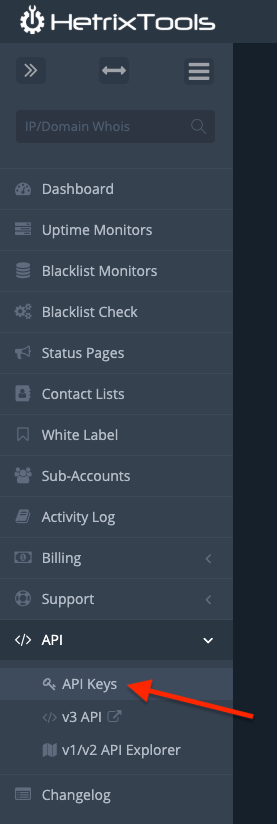
To begin configuring the scope for any of your API keys, go to your API keys dashboard from your client area menu.
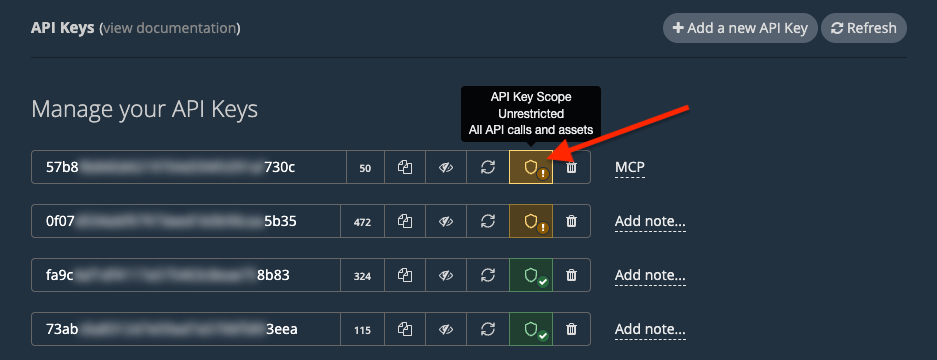
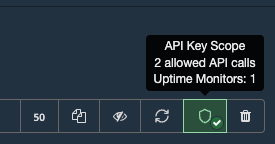
Locate the API key you wish to configure the scope for, and click the ‘API Key Scope’ button next to it.
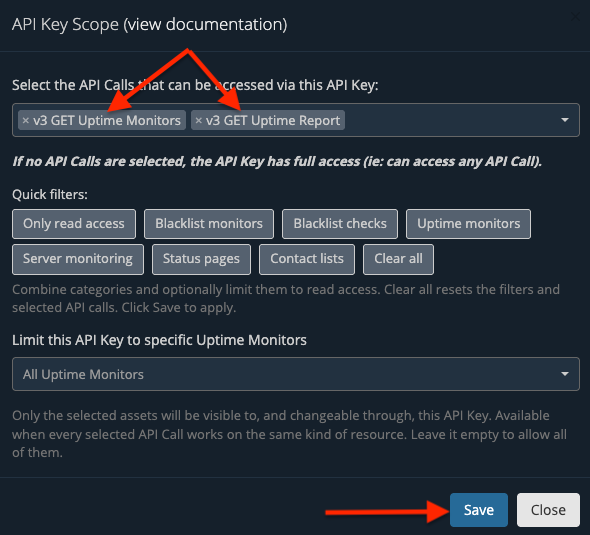
A modal pop-up will appear, where you will be able to select the exact API calls that this API key will be allowed to perform on our platform.
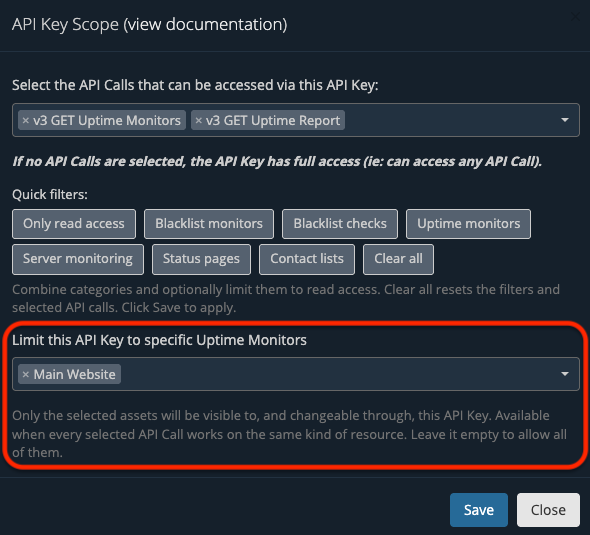
You can further configure the scope by selecting just specific assets (Uptime Monitors, Blacklist Monitors, etc.) to be accessible for this API key.
Once you’re done configuring which API Calls to allow, be sure to click the ‘Save’ button in order to save your changes.
So we’ve selected the ‘v3 GET Uptime Monitors’ and the ‘v3 GET Uptime Report’ API calls. This means that this API key can now perform only these two API calls on our platform. If you try performing any other API calls using this API key, you will get the following error:
{"status":"ERROR","error_message":"api key does not have access to perform this api call"}
Now that we’ve modified the scope for this one API key, you’ll notice that its scope button color has changed, so you can easily spot your API keys that have restricted scopes.
In order to see all of our API Calls, along with their names and what they can do, be sure to check out our v3 API documentation:
https://docs.hetrixtools.com/api/v3/