
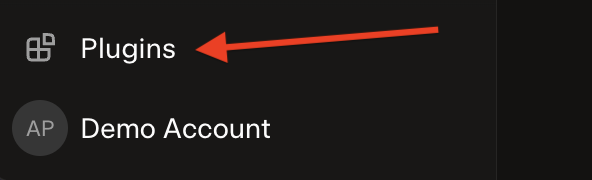
Start by locating and clicking on the “Plugins” item in the side menu of your Grok app.
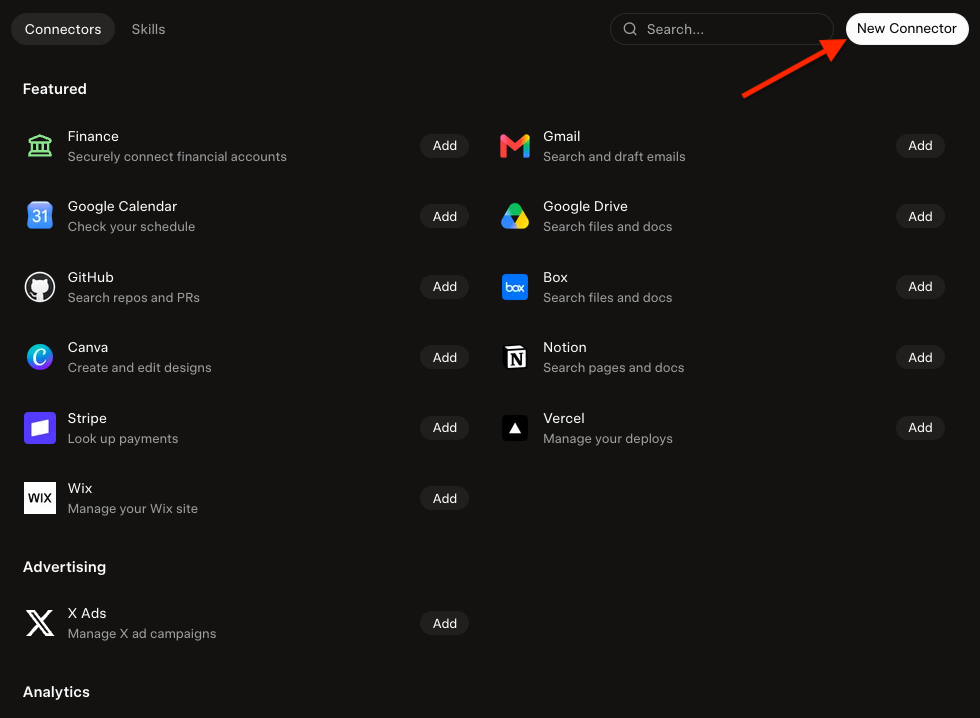
On the “Plugins” page, click on the “New Connector” button.
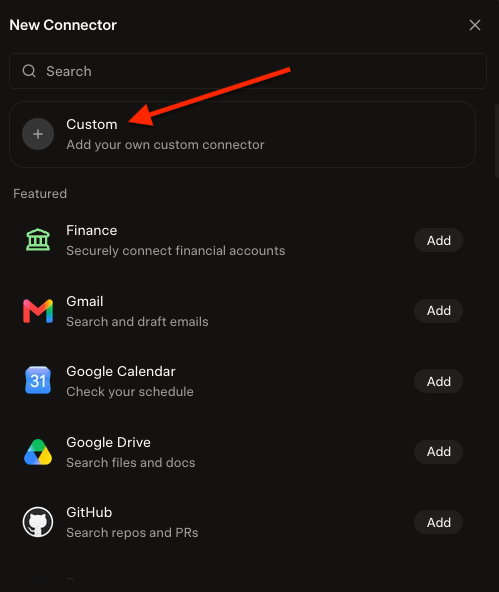
Then, click on the “Custom” button to add your own MCP server.
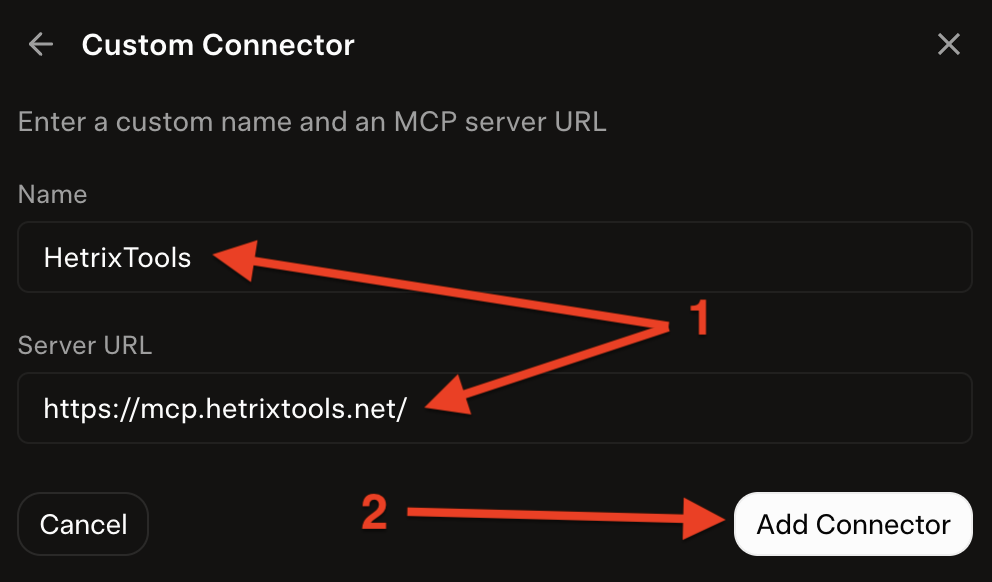
Fill in the connection details as follows, then click on the “Add Connector” button.
Name: HetrixTools
Server URL: https://mcp.hetrixtools.net/
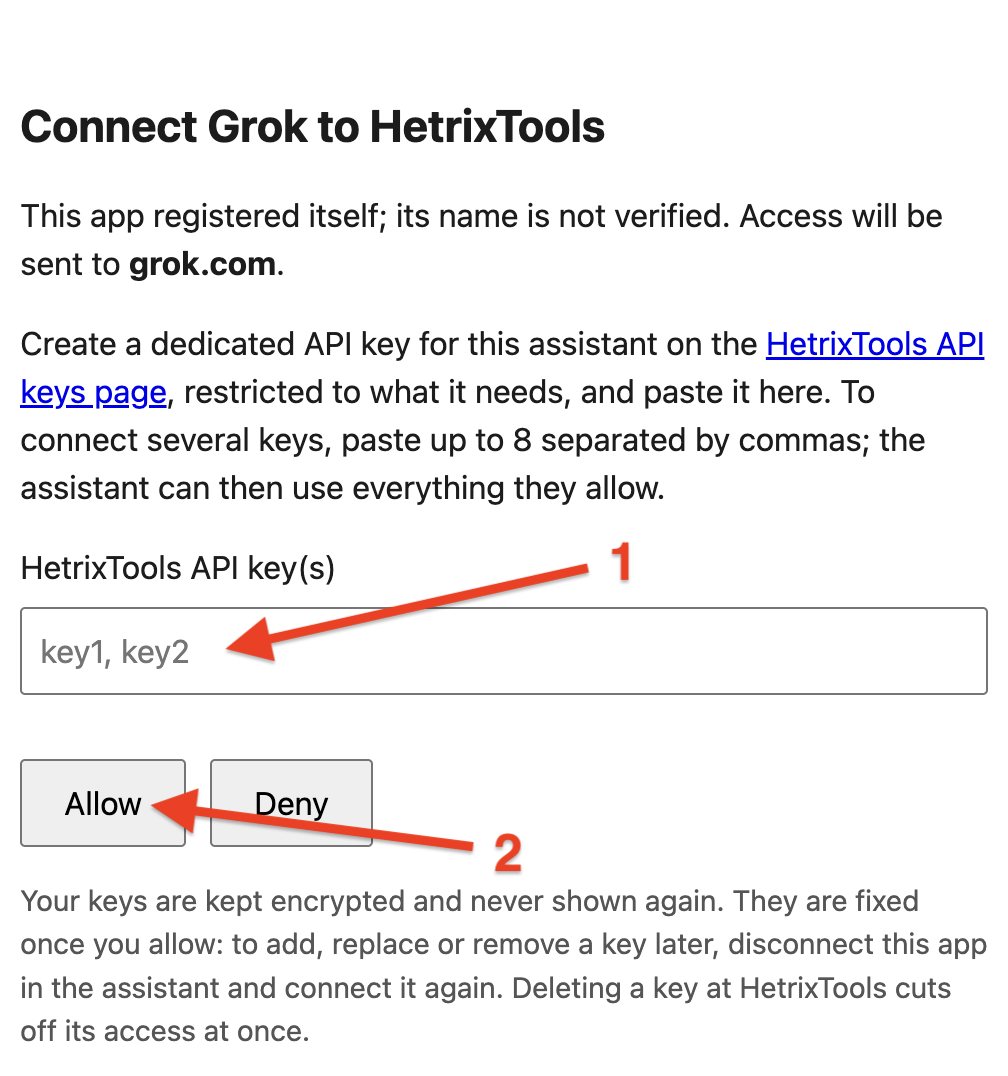
Fill in your HetrixTools API key(s), and click on the “Allow” button. We recommend you scope your keys to be allowed to perform just the actions you need them to.
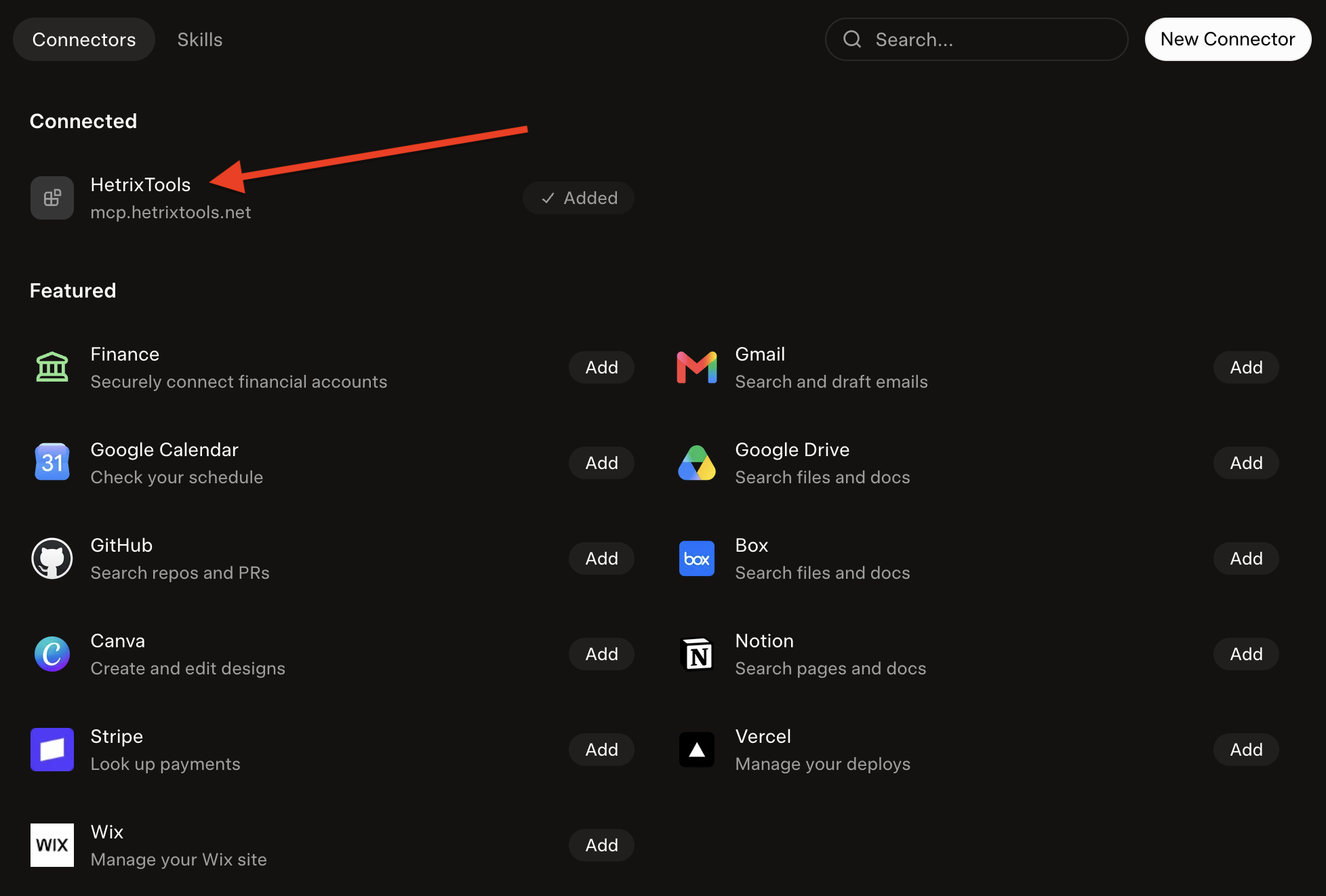
After finishing the authentication flow, our MCP will be added and connected to your Grok connectors.
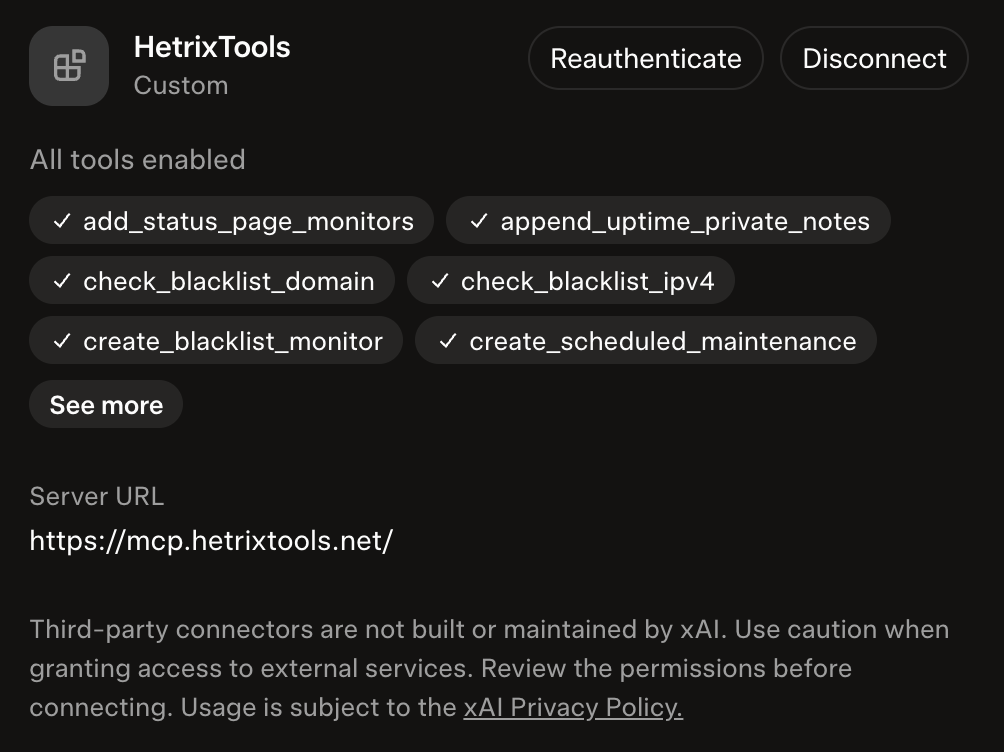
You can now start using it in your Grok chats.